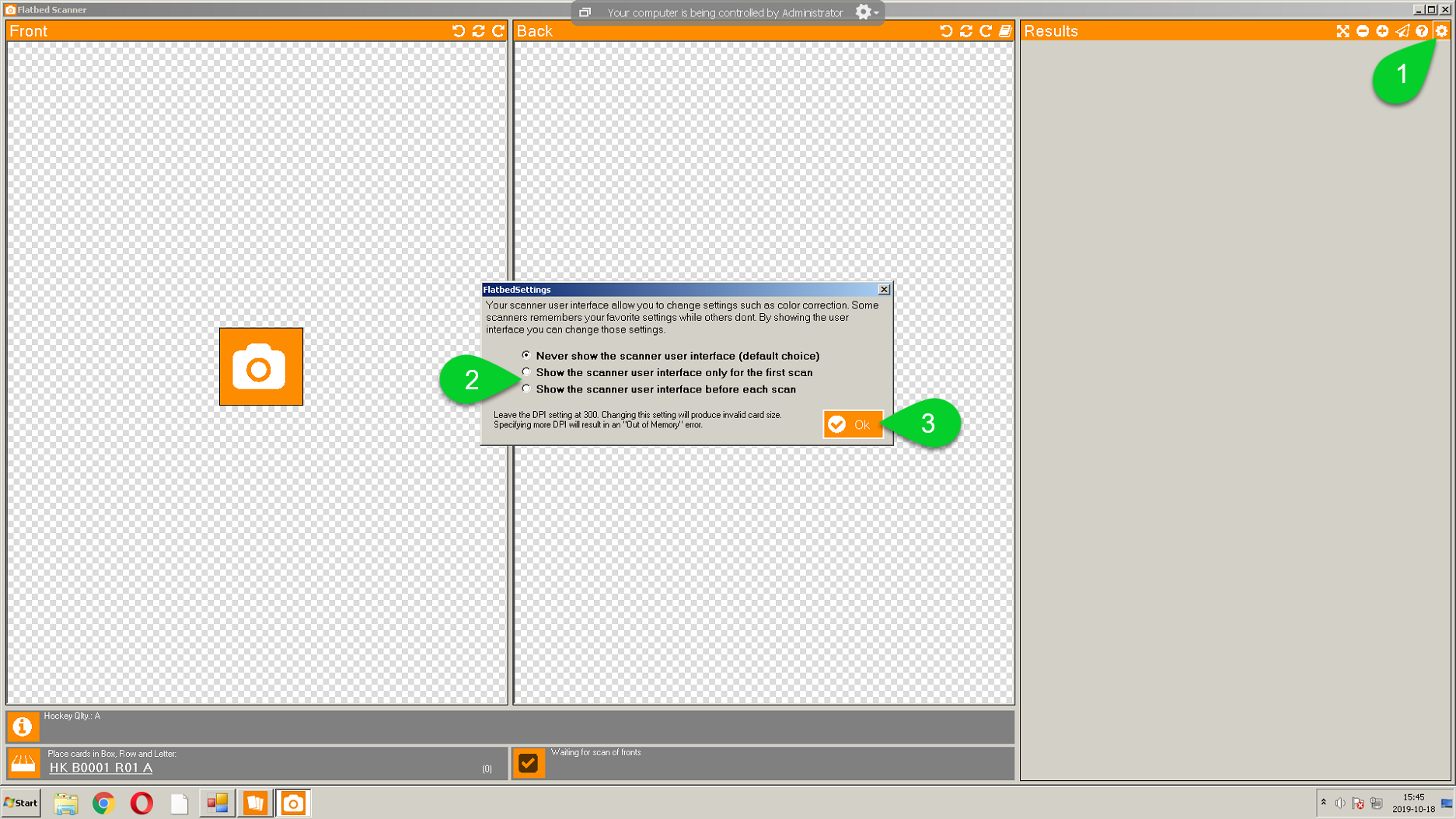
When you scan cards normally you don't need to adjust your scanner settings. The default values normally give good results. However, for some cards it is possible that the image may be too dark or too pale. In such a case, you can change the settings of your scanner when you use Kronocard. Because each scanner are different and uses different adjustment settings we cannot tell you what to change, however we can show you how to make your scanner adjustment panel appear when you are in Kronocard. Just follow those three steps.
1. When you are in the scan window, click on the top right gear icon ⚙
2. Select the desired option, you can select to only show the settings once on the first scan, or on every scan
3. Click Ok, then try scanning
Was this article helpful?
That’s Great!
Thank you for your feedback
Sorry! We couldn't be helpful
Thank you for your feedback
Feedback sent
We appreciate your effort and will try to fix the article